How to make a kanban board or a retro
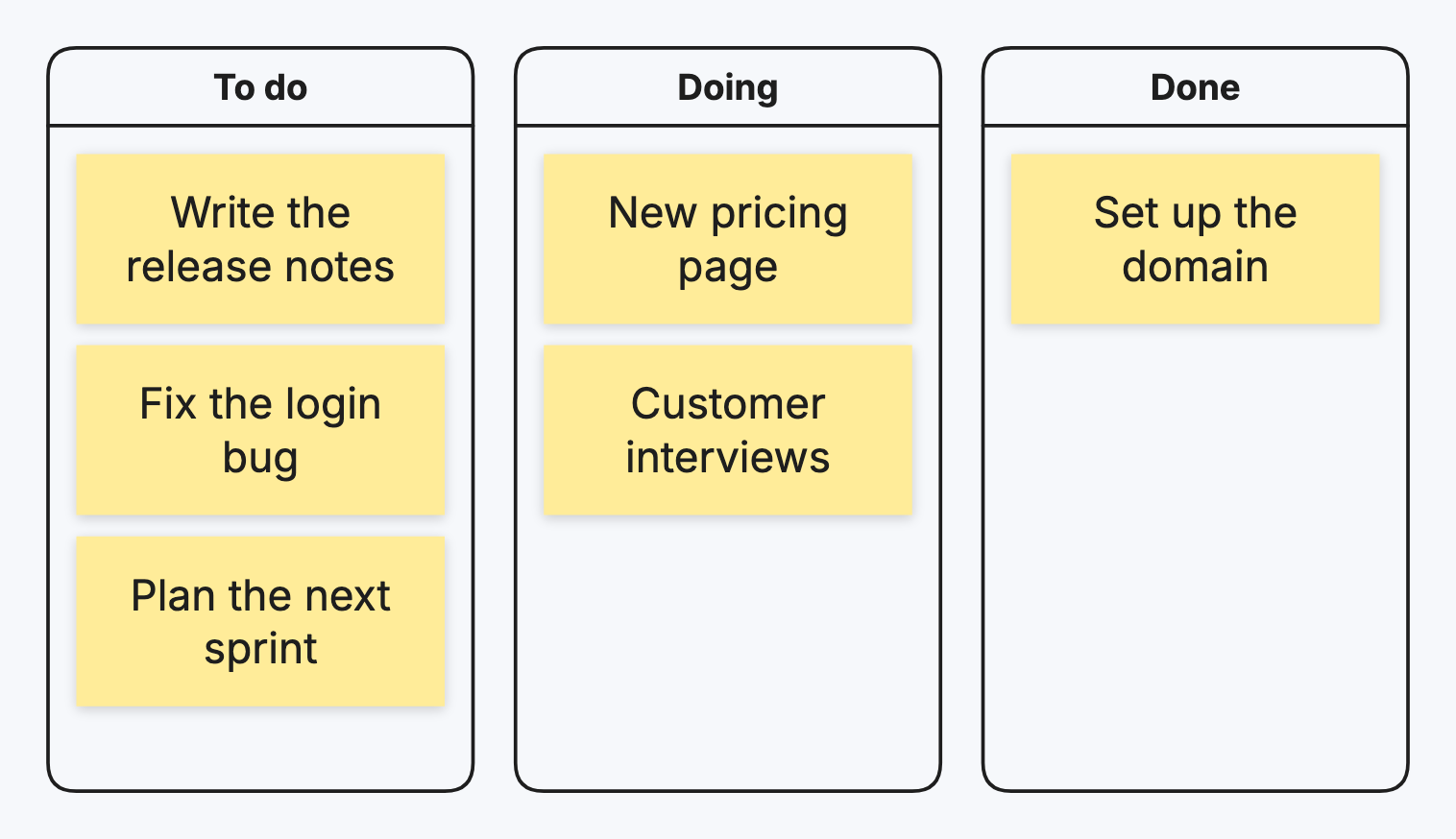
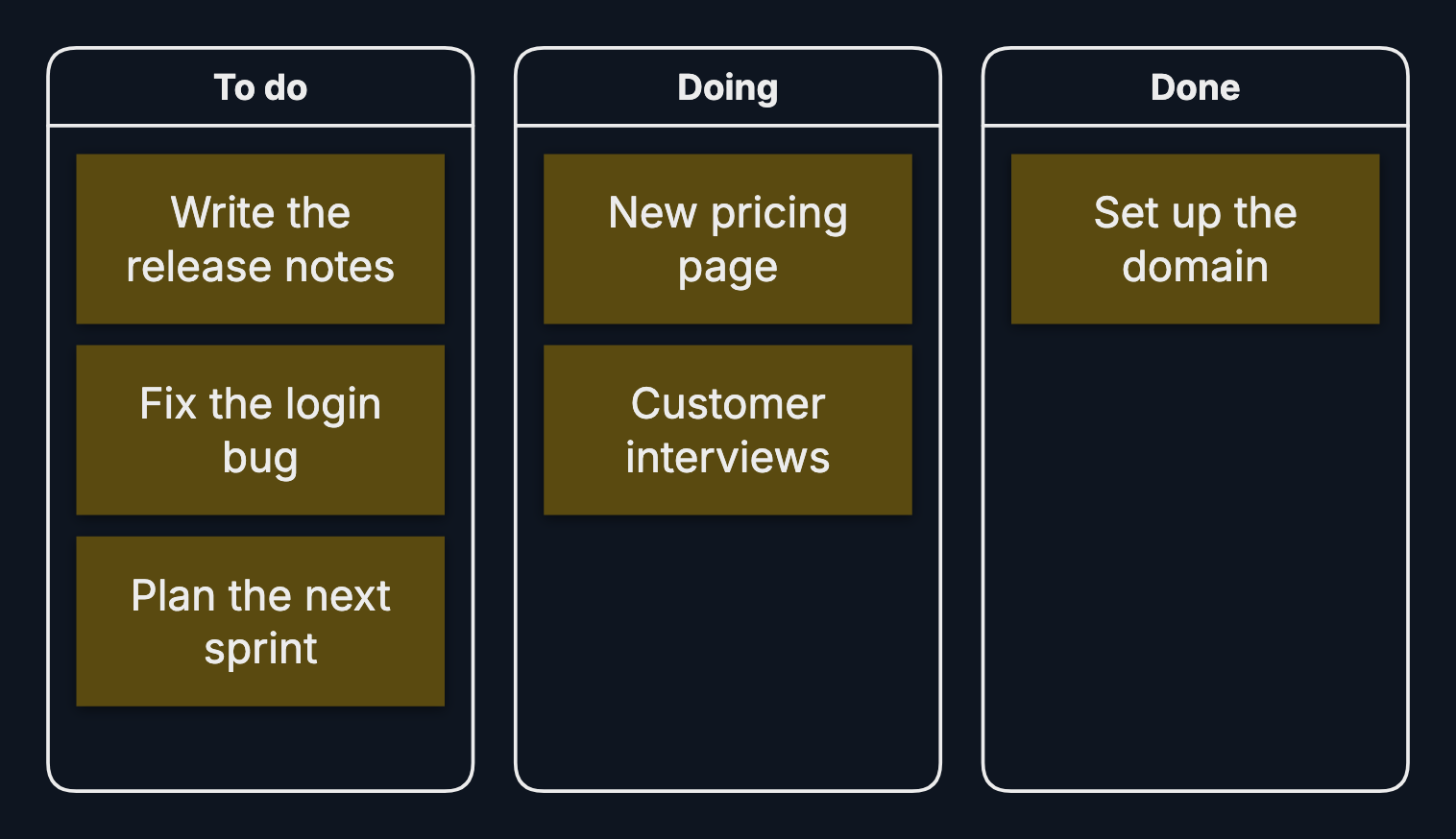
A kanban board shows work as cards in columns, one column per stage, so you can see at a glance what’s waiting, what’s under way and what’s done. The same board makes a retrospective: one column per question, one card per thought.
Step by step
-
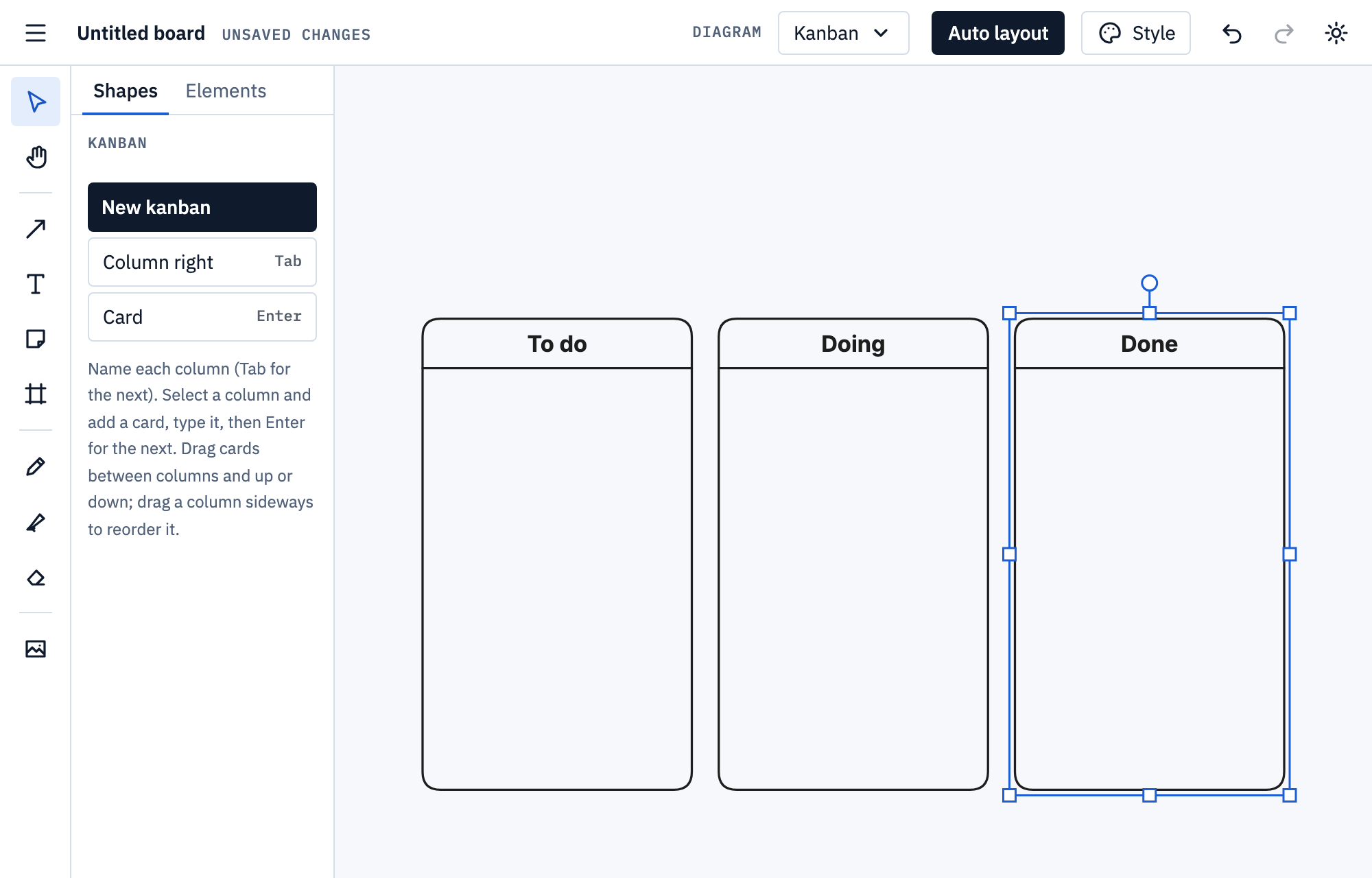
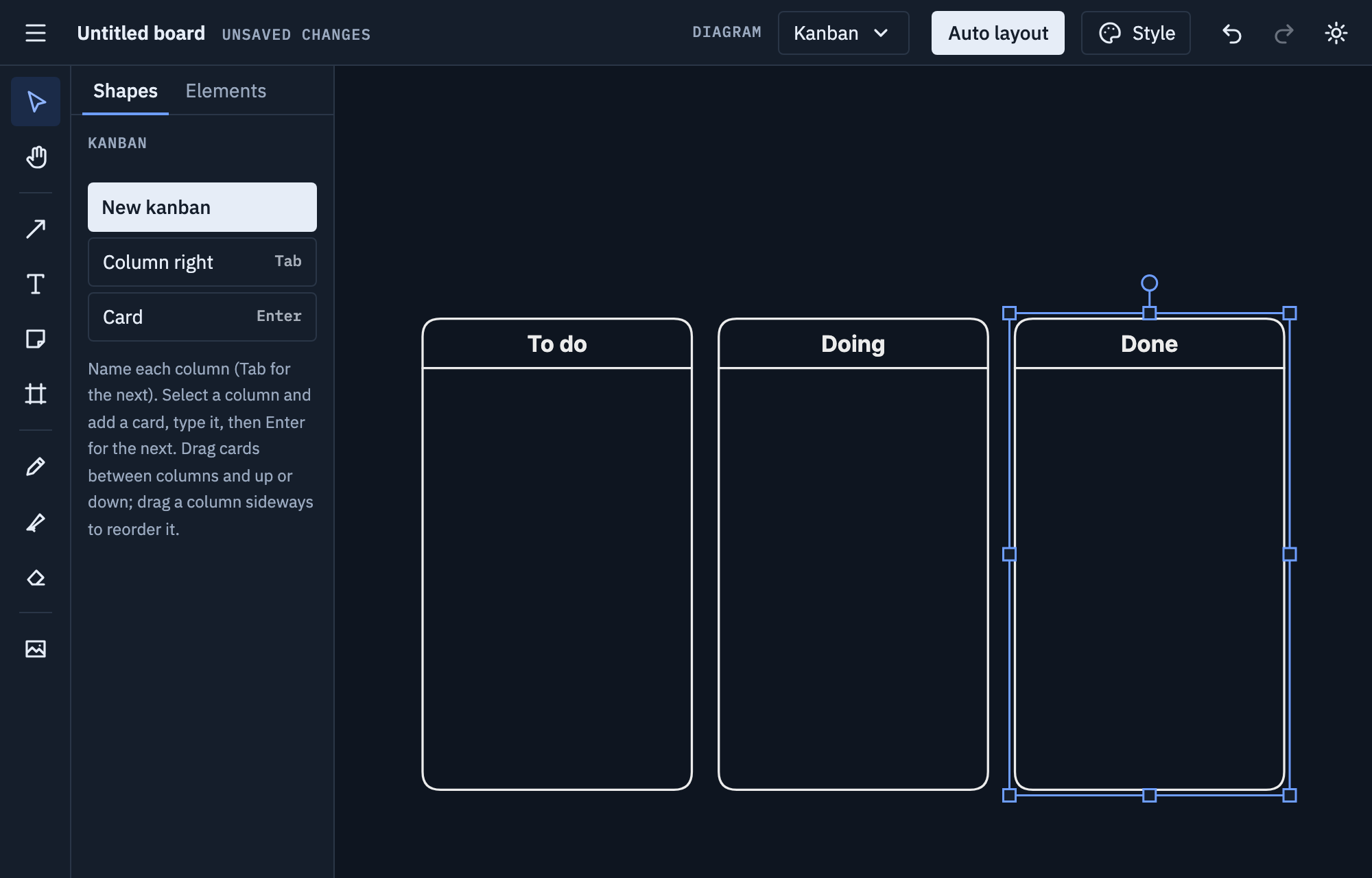
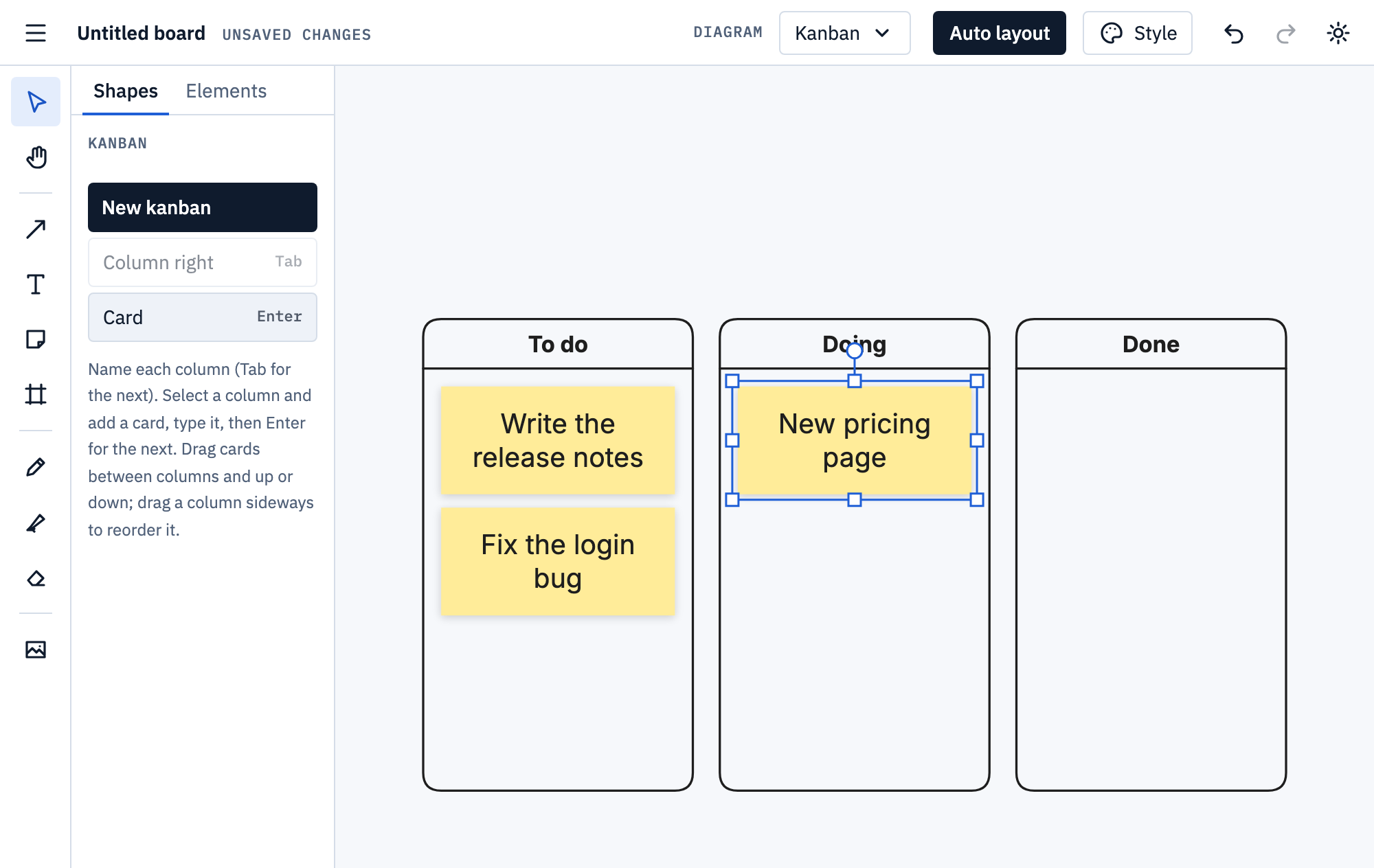
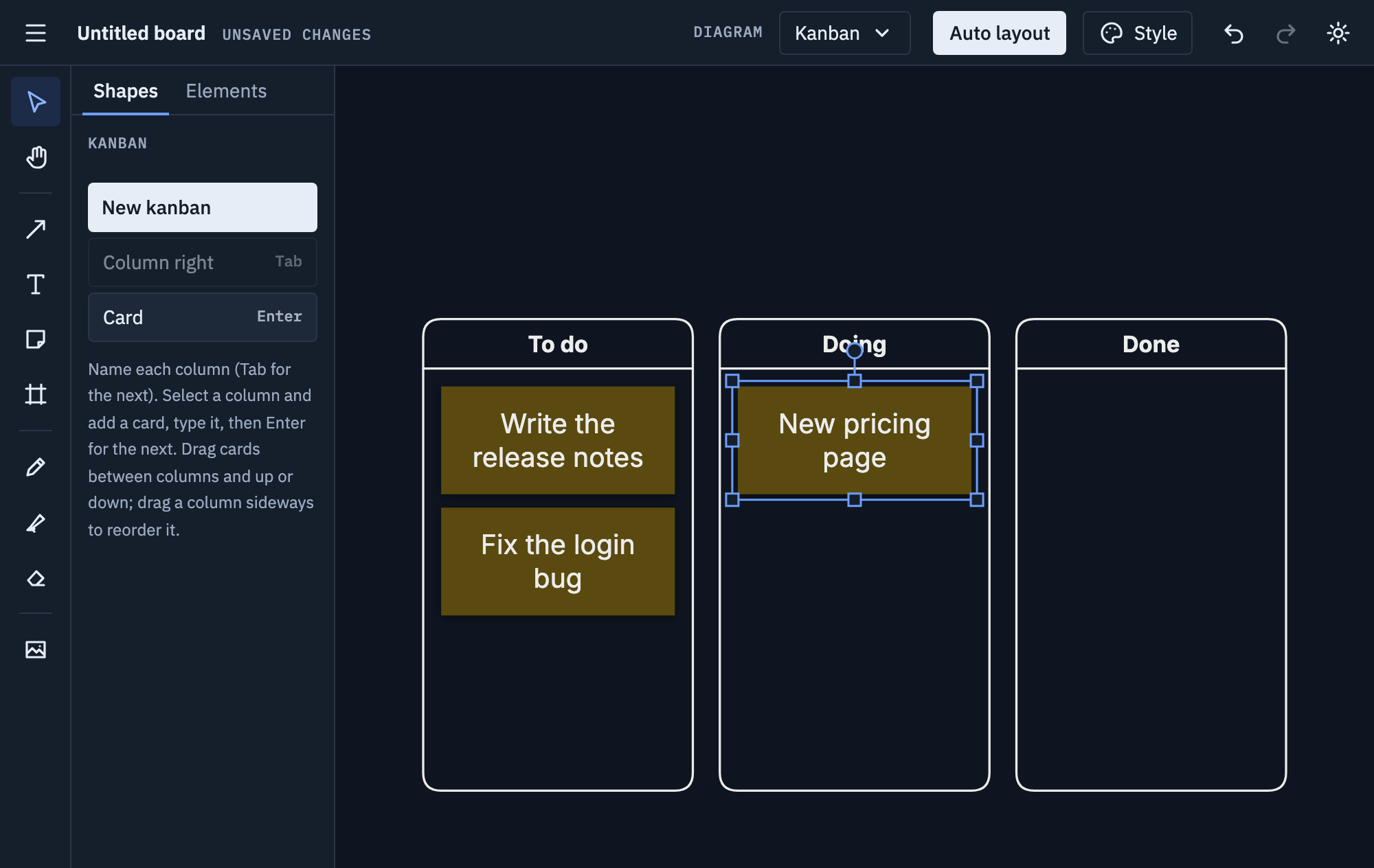
Pick Kanban from the Diagram menu and click New kanban. Type the first column’s name, press Tab for the next one, and Escape when you’re done. Tab on the last column adds another.
-
Click a column’s name to select it, then click Card and type. Press Enter for the next card below it (Shift+Enter for a new line in the card).
-
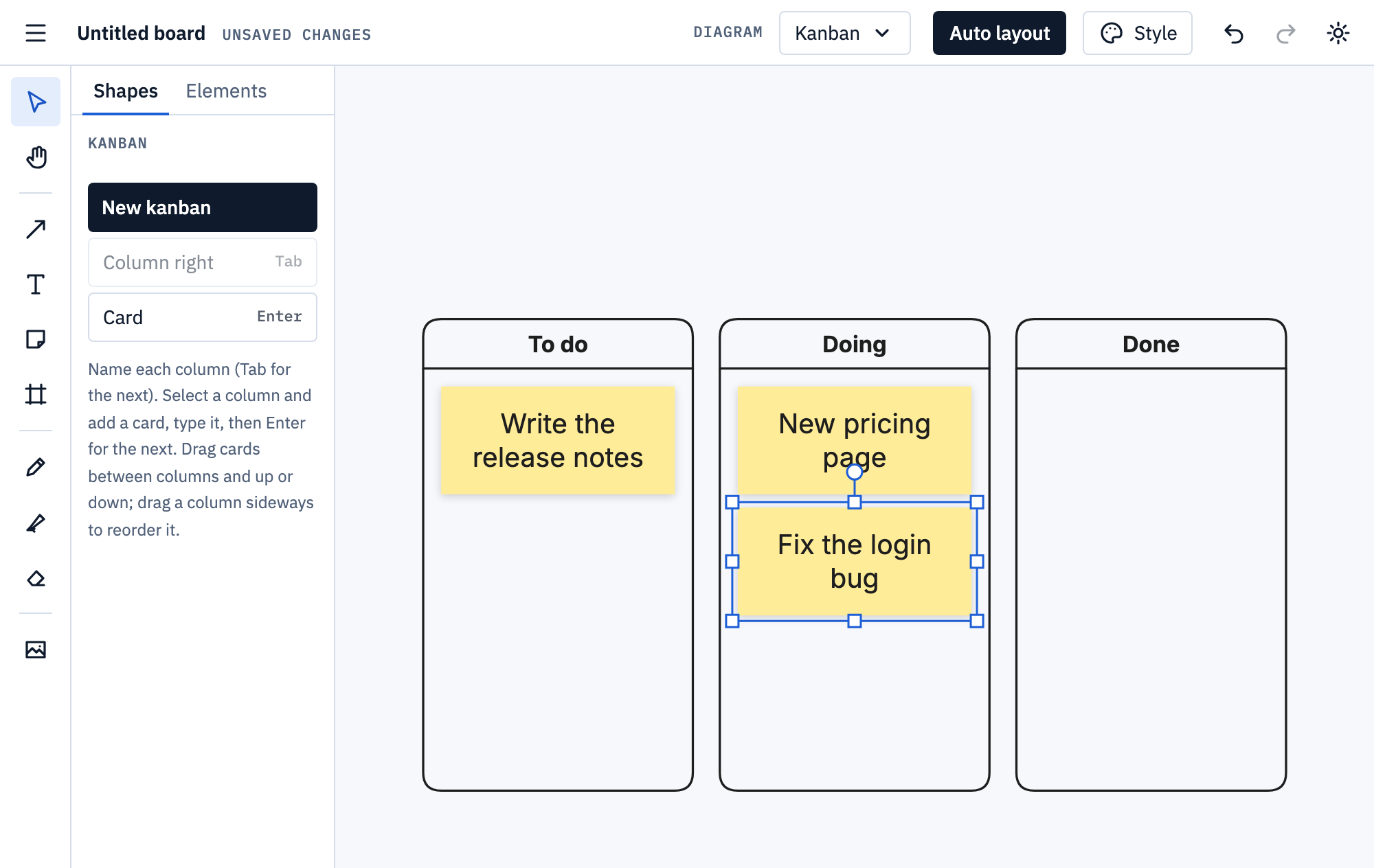
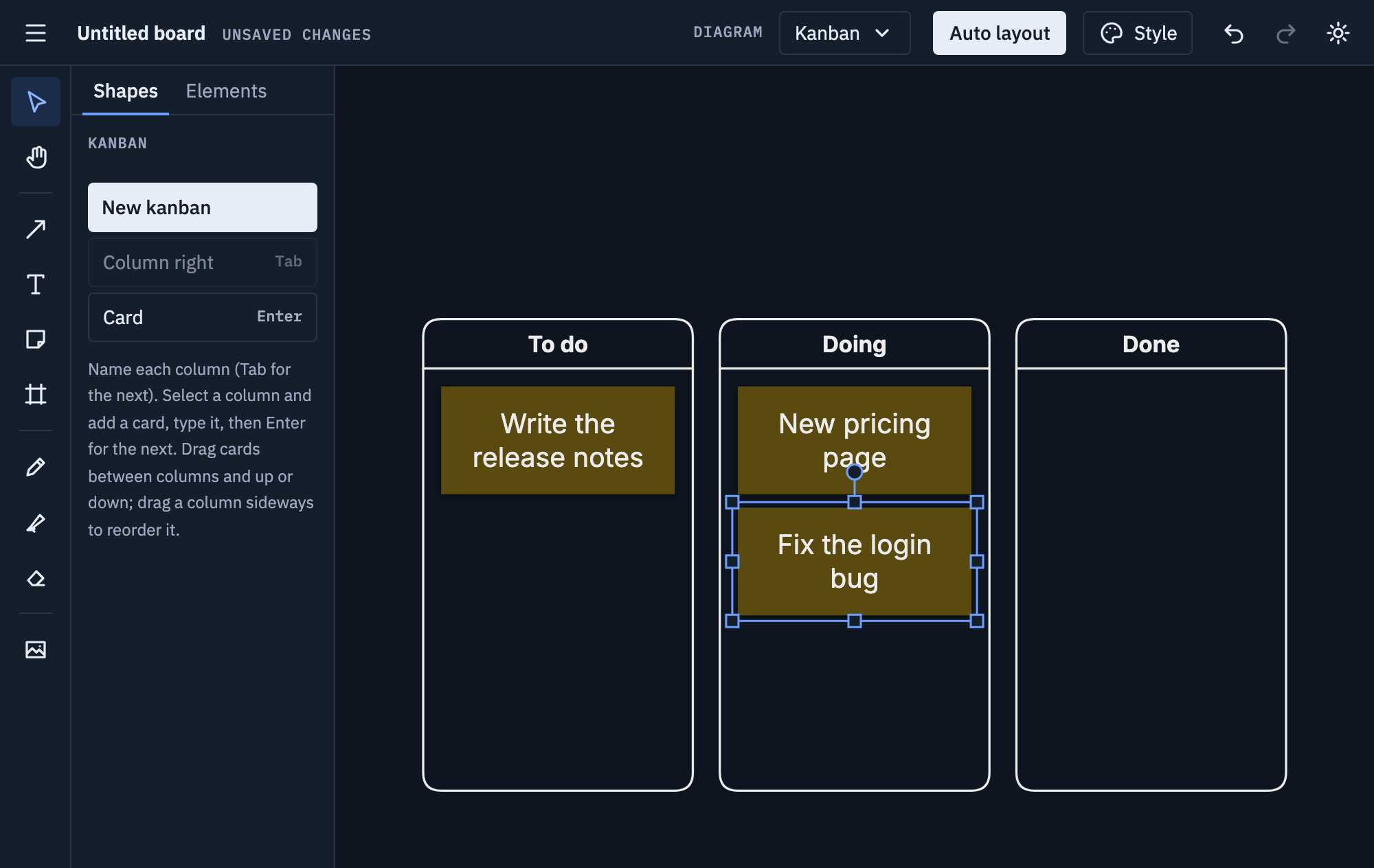
As work moves on, drag its card to the next column. Drop it between two cards to put it there; the column tidies itself and grows to fit.
A retrospective
For a team retro, start from Board menu → New from template… → Retrospective: columns for what went well, what to improve and actions, each with its own card colour. Everyone adds their cards, you group similar ones by dragging them together, and the Actions column is what you take away.
Tips
- Keep cards short: one task or one thought, a few words each.
- Limit how many cards can be in Doing at once; a full Doing column means it’s time to finish, not start.
- Give a column another colour of card for a different kind of work, like bugs.
- To reorder columns, drag one sideways past another. Deleting a column deletes its cards; Ctrl+Z (or ⌘+Z) brings them back.
Mermaid
Export Mermaid… writes each column as a subgraph holding its
cards. Pasting that text back gives zones rather than columns. More on
Mermaid import and export.